Tools Mentioned in This Guide
Claude Design
AI Design · Included with Claude Pro $20/mo
Anthropic's prompt-to-prototype tool that turns text into polished prototypes, decks, and mockups on a visual canvas.
Claude (claude.ai)
AI Assistant · Free -- $200/mo
The host platform where Claude Design lives; your plan and usage allowance carry over.
Claude Code
AI Coding Agent · Included with Claude Pro/Max
Receives the design handoff bundle and turns your prototype into production code.
Canva
Design Platform · Free -- $15/mo
Export destination for finishing decks and marketing collateral with templates and brand kits.
Figma
Design Tool · Free -- $16/mo
The traditional UI design tool Claude Design complements for detailed, pixel-level work.
For years, the gap between "I have an idea for a screen" and "here is a real, clickable version of it" required either design skills or a designer's time. Claude Design closes that gap. Launched by Anthropic Labs in April 2026, it turns a plain-English prompt into a polished, interactive prototype, a pitch deck, a landing page, or a UI mockup — on a live canvas you refine in conversation, no Figma experience required.
This guide walks you through how to use Claude Design end to end: how to access it, how to start a project, the three different ways to refine a design, how to export your work (including handing it straight to developers), and where it fits next to tools like Figma and Canva. It is genuinely built for non-designers, so if you have never opened a design app in your life, you are exactly who this is for.
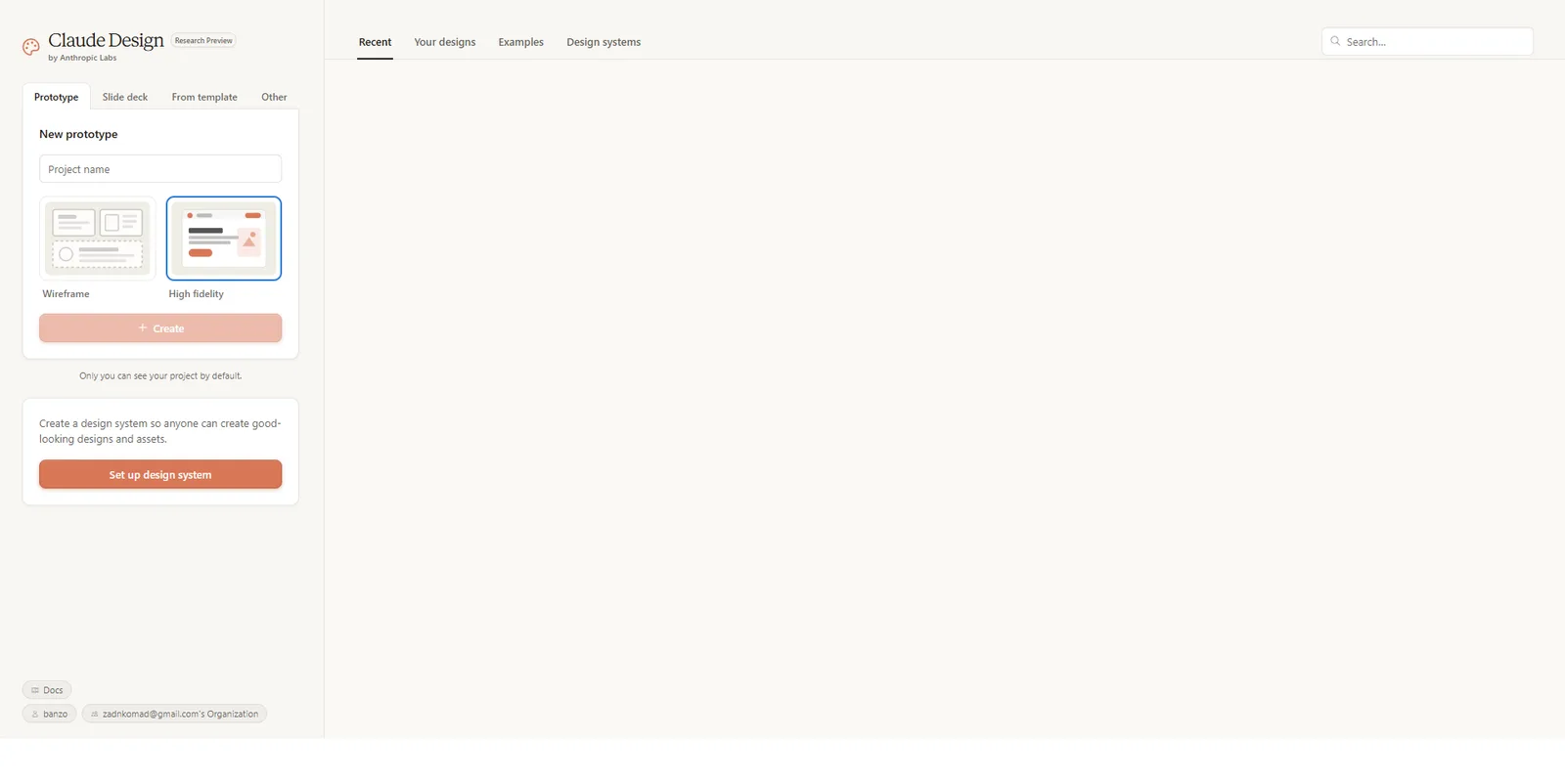 Claude Design turns a plain-English prompt into a polished, editable design — no Figma experience required.
Why This Matters
Claude Design runs on Anthropic's current top-tier model — Claude Opus 4.7 when it launched in April 2026, with Claude Opus 5 shipping in July 2026 and Claude Fable 5.1 on 1 September — and it represents a real shift in who gets to make design work. Anthropic lists five target users — designers, product managers, founders, marketers, and account executives — but the honest subtext is that the biggest unlock is for people who have never touched a design tool.
The practical value is speed and self-sufficiency. A founder can build a pitch deck or a product prototype before a sales call instead of waiting on a designer. A marketer can spin up a campaign landing page in an afternoon. A PM can turn a feature spec into a clickable flow to test with users. And because Claude Design connects directly to Claude Code for the build step, a prototype does not die in a slide — it can become real, shipped software. For small teams and solo operators, that compresses a workflow that used to involve several people and several tools into one conversation. If you are new to Anthropic's ecosystem, our Claude AI review covers the assistant that hosts it.
What You Will Need
- A paid Claude plan — Claude Pro at $20/mo, or Max, Team, or Enterprise. Claude Design is not available on the free tier.
- A web browser — Claude Design runs entirely inside claude.ai; there is nothing to install.
- An idea to start from — a text description, a reference screenshot, an existing document, or a codebase. Any of these works as a starting point.
- (Optional) A Canva account or developer access to Claude Code if you plan to export and finish your work elsewhere.
Step 1: Open Claude Design
Claude Design is not a separate app — it lives inside Claude.ai. Go to claude.ai/design, or click the palette icon in the left-hand navigation sidebar of Claude.
A note on access: it is included with Pro, Max, and Team plans and uses your existing usage allowance. On Enterprise plans it is disabled by default — an admin has to switch it on in the Organization settings first. It is also currently a research preview, so expect a few rough edges (more on those later).
Step 2: Start a Project and Bring Your Context
Create a new project. The first time you use it, Claude Design builds a design system for you by reading your existing codebase and design files — pulling in your brand colors, typography, and components. After that, every new project automatically inherits your look, so your output is on-brand without any manual setup.
You can start a design from any of four inputs:
- A text prompt — describe what you want in plain language.
- Uploaded files — screenshots, images, or documents (DOCX, PPTX, XLSX). Great for "turn this spec into a screen" or "make this rough sketch real."
- A linked codebase — point Claude at a repository so it understands your real components, architecture, and styling.
- Web capture — grab elements directly from your live website so the prototype looks like your actual product.
Pro tip: A good prompt names four things — the goal, the layout, the content, and the audience. "Design a pricing page (goal) with three side-by-side tiers and a monthly/annual toggle (layout) for a project-management SaaS (content) aimed at small agencies (audience)" beats "make a pricing page" every time.
Step 3: Refine With the Right Tool for the Job
This is where Claude Design shines, and the key skill is matching the type of change to the right refinement method. There are three:
-
Chat — for broad, structural changes. Use the conversation for big shifts: "rearrange this into a two-column layout," "switch to a darker color scheme," "add a testimonials section." Chat is your tool for anything that affects the overall design.
-
Inline comments — for targeted tweaks. Click directly on a specific element on the canvas and request a precise change: "make this button's padding larger," or "change this to a dropdown instead of radio buttons." This is far more accurate than describing the element in chat.
-
Adjustment knobs — for live, hands-on tuning. Tweak spacing, color, and layout directly with on-canvas controls and watch the design update in real time. You can also edit text directly on the canvas.
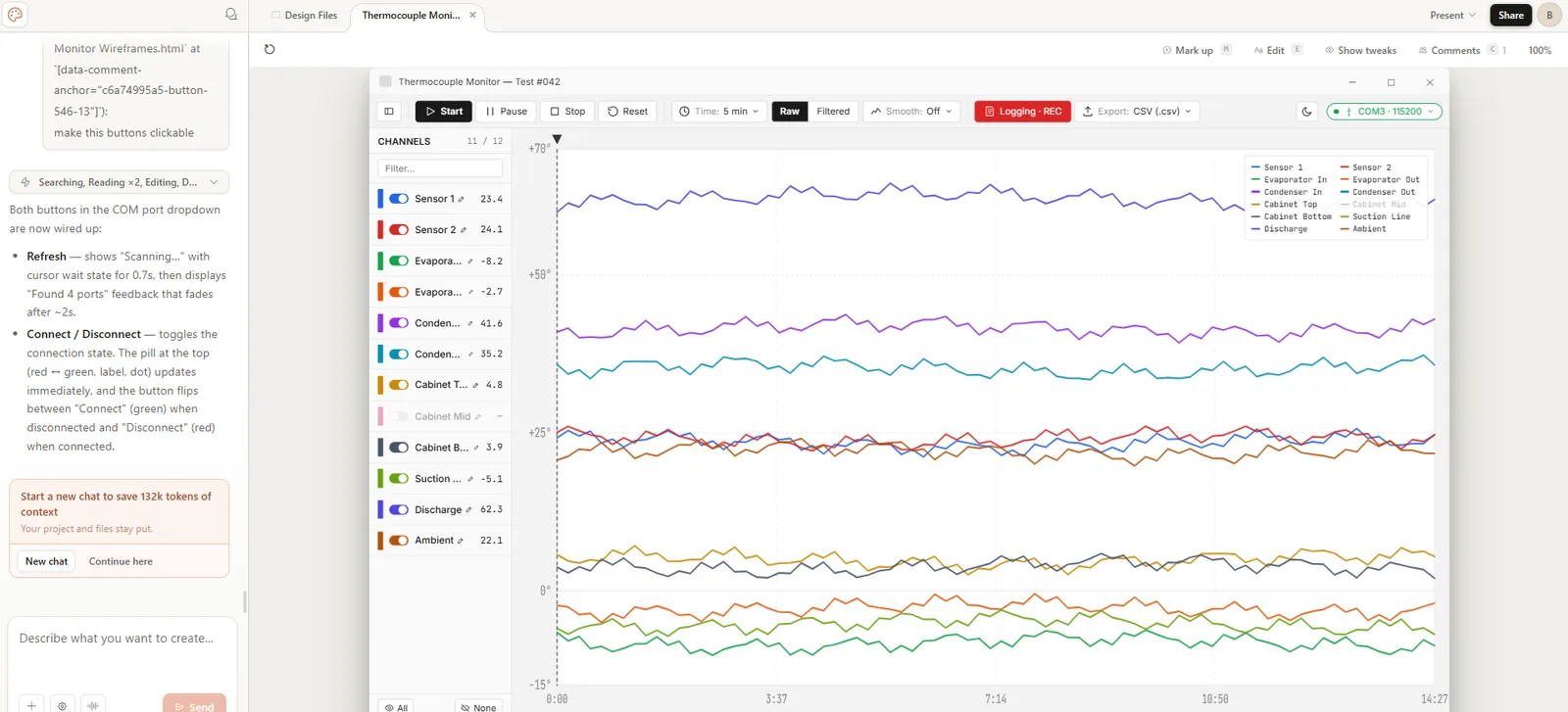 Claude Design's split layout: you direct the work in chat on one side while the live design renders on the canvas you refine directly.
Once you have a change you like, you can ask Claude to apply it across the entire design for consistency.
Pro tip: To explore a bold alternative without losing your current work, just tell Claude: "Save what we have and try a completely different approach." It preserves the version and branches a fresh direction, so you can compare and pick a winner.
Step 4: Export or Hand Off Your Work
When the design is ready, hit the Export button. Your options:
- Download as a
.zip— the full project folder. - Export as PDF or PPTX — for decks, one-pagers, and documents.
- Send to Canva — to finish in Canva with templates and brand kits.
- Export as standalone HTML — a self-contained web page.
- Handoff to Claude Code — package the design into a bundle and send it to your local coding agent or Claude Code Web.
That last option is the one that makes Claude Design more than a mockup tool. A developer can take the handoff bundle into Claude Code with a single instruction and get real, iterable code — turning your prototype into shipped software without a manual redraw. This design-to-code pipeline is the headline reason to use Claude Design over a pure mockup tool.
Results: What to Expect
In a single sitting, most people can go from a one-sentence idea to a polished, shareable prototype or deck. A realistic first session looks like this: you describe a screen, Claude renders a working version, you spend ten minutes refining with inline comments and adjustment knobs, you branch one alternative layout to compare, and you export a PDF or send it straight to a developer.
Set expectations sensibly, though. As a research preview, Claude Design is fast and impressive but not flawless — it is best at getting you 80–90% of the way to a strong design quickly, with you steering the details. For pixel-perfect, production-grade UI systems, you will still reach for a dedicated tool like Figma; Claude Design's strength is speed, accessibility, and the jump straight to working code.
Advanced Tips
Link a Subdirectory, Not a Giant Repo
Pointing Claude at a very large repository can cause lag or browser issues. Link a specific subdirectory instead — it keeps things responsive while still giving Claude the component and styling context it needs.
If an Inline Comment Disappears, Use Chat
A known quirk of the preview: inline comments occasionally vanish before Claude reads them. If that happens, just paste the same instruction into the chat as a fallback — same result, no lost work.
Switch to Full View If Saving Fails
The compact view layout can sometimes trigger a save error. If a save fails, switch to full view and retry — a small but useful workaround for the current preview.
Build Interactive, Code-Powered Prototypes
Claude Design is not limited to static screens. You can build prototypes with voice, video, shaders, 3D, and built-in AI — useful when you need to demo a genuinely interactive experience, not just a flat mockup.
Recommended Tools
| Tool | Category | Price | What It Handles |
|---|---|---|---|
| Claude Design | AI Design | Included with Pro $20/mo | Prompt-to-prototype: decks, mockups, landing pages on a live canvas. |
| Claude (claude.ai) | AI Assistant | Free -- $200/mo | The platform that hosts Claude Design. |
| Claude Code | AI Coding Agent | Included with Pro/Max | Turns the design handoff bundle into production code. |
| Canva | Design Platform | Free -- $15/mo | Finish decks and marketing collateral after export. |
| Figma | Design Tool | Free -- $16/mo | Pixel-level UI work that complements Claude Design. |
We do not earn commissions on these tools — they are recommended purely because they form the most practical design-to-ship workflow in 2026.
FAQ (Frequently Asked Questions)
Is Claude Design free?
No. Claude Design requires a paid Claude plan — Pro ($20/mo), Max, Team, or Enterprise. It is included within your existing plan's usage allowance (with optional overages), so there is no separate fee, but the free tier does not include it. On Enterprise plans an admin must enable it first.
Do I need design experience to use it?
Not at all — that is the whole point. Claude Design is built so that people who have never opened Figma can produce professional design work. You describe what you want in plain language and refine it conversationally. Designers get value too (faster exploration), but non-designers are the core audience.
Is Claude Design the same as Claude Code?
No, they are two different products that work together. Claude Design is the design layer — it creates prototypes, decks, and mockups visually. Claude Code is the build layer — it writes the production code. Claude Design hands its work to Claude Code through an export bundle. See our companion guide on how to use Claude Code for the build side.
Can Claude Design replace Figma or Canva?
For many use cases, especially early-stage prototyping, pitch decks, and quick landing pages, it can. But it complements rather than fully replaces them: Figma still wins for detailed, pixel-perfect production UI, and Canva offers a huge template library for finishing marketing assets — which is exactly why Claude Design can export to Canva. For a broader look, see our roundup of the best AI design tools for non-designers.
What can I actually make with it?
Interactive prototypes, product wireframes and mockups, design explorations and variations, pitch decks and presentations, marketing collateral and landing pages, and even code-powered prototypes with voice, video, 3D, and built-in AI. If it is a visual or a screen, Claude Design can probably draft it.
Claude Design is the front door to Anthropic's design-to-code pipeline, and it is most powerful when paired with the build step. Once your prototype is ready, read how to use Claude Code to turn it into real software. And if you are comparing AI assistants more broadly before committing to the Anthropic ecosystem, our Claude AI review and ChatGPT vs Claude for business comparison are the best places to start.
Frequently Asked Questions
Which AI tools does this guide recommend?
This guide covers Claude Design, Claude (claude.ai), Claude Code, Canva, Figma.
Is Claude Design worth it?
Anthropic's prompt-to-prototype tool that turns text into polished prototypes, decks, and mockups on a visual canvas. Pricing: Included with Claude Pro $20/mo.
Is Claude (claude.ai) worth it?
The host platform where Claude Design lives; your plan and usage allowance carry over. Pricing: Free -- $200/mo.
Is Claude Code worth it?
Receives the design handoff bundle and turns your prototype into production code. Pricing: Included with Claude Pro/Max.
Is Canva worth it?
Export destination for finishing decks and marketing collateral with templates and brand kits. Pricing: Free -- $15/mo.
Related Articles
Cursor Review 2026: The AI Code Editor, Its Limits & Real Costs
Fathom Review 2026: The Free AI Notetaker That Undercuts Everyone
Fireflies.ai Review 2026: The Integration-First Meeting AI
Founder & Lead Reviewer at ShelbyAI
I've personally tested every tool on this site — signing up, paying for plans, and running real projects for 7–14 days each. When I say a tool works, I mean I've used it on actual client work.
31+ tools tested · 7-14 days per review · Real workflows, real results
Get the Best AI Tools in Your Inbox
Every week, we send one tested AI tool pick plus practical tips. Read by creators, freelancers, and lean teams. No sponsored content.
- One tested AI tool recommendation per week
- Early access to new reviews and comparisons
- Practical workflow tips — zero fluff
No spam, unsubscribe anytime.